14 Must-Know Tips for Mastering Free Graphic Design Tools Online
GRAPHIC DESIGNTOOLS

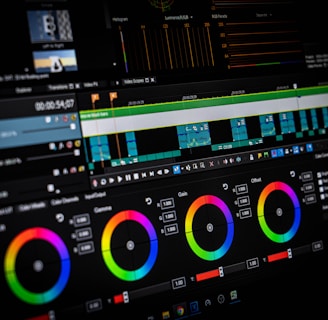
Let’s face it: the digital creative landscape is flooded with free tools promising pixel-perfect magic. But are you wrangling the right design tool for your specific task? Or, like me in my early design days, are you desperately layering icons and vector tools in random editors, only to stare at a jumbled mess at 2 AM?
Whether you’re mapping out a new product design, building wireframes with multiplayer collaboration, or rolling out a suite of brand assets to rally stakeholders, these tips will help you work smarter—not harder. So grab your digital whiteboard (or, okay, your second coffee) and let’s untangle the nitty-gritty of modern collaborative design.
Tip #1: Match the Task to the Right Free Tool
Before I even hit ‘New Project,’ I pause: what am I actually building? Are we prototyping a slick mobile app or mocking up Instagram stories? Selecting the right free graphic design tools sets your whole workflow up for success.
Vectors, Photos, or Social? Pick Wisely!
Vectors & UI Kits
If you crave crispy vector tools for UX design or an interface as clean as your best day, Figma is a crowd favorite. Its multiplayer file support is a game-changer for co-create presentations and online collaboration, joining forces with powerhouses like HP and Spotify.
Other vector options: Vectr and Boxy SVG—both solid picks for starters and web development focus.
With any of these, you get scalable assets, ready for anything from UI kits to responsive websites.
Photo Editing
When you need to retouch photos, turn to nimble web-based apps like Photopea and Pixlr. These are brilliant for non-destructive edits and rapid iteration, making them mainstays for product development and content creators, as reviewed in this extensive roundup of tools.
Social Templates
Are you whipping up an event banner or a set of Pinterest graphics? Canva and PosterMyWall are your best pals for templates, with drag-and-drop ease and quick widget additions—super handy if your role blends design and marketing.
Don’t waste time hacking UI patterns into a pixel-based editor or photo effects into a vector sandbox. The right tool means seamless design handoff and a happier design system.
Tip #2: Master Layers, Masks, and Non-Destructive Edits
The secret to fearless exploration in graphic design? Layers. I can’t count how many times I’ve been saved by proper layer management—or destroyed hours of work by merging them too early (RIP, my first UI kit).
Why Layers Matter
In every modern design tool worth its salt—think BeFunky’s graphic designer and Figma dashboards—layers let you compartmentalize: background, graphics, text, UI kits. Add mask layers to shape visuals gently or experiment with transparency.
Non-Destructive Is Freedom
Masks and adjustment layers are your safety nets. They let you iterate, tweak contrast, test gradients, or zap out color styles—all while preserving your original design. This fosters a healthy culture of prototyping, essential for product managers and engineers powering through agile workflows.
Tip #3: Build Reusable Styles, Components, and Brand Kits
You know what separates design systems from “just a pretty layout?” Consistency. The best collaborative design workflows depend on standardizing styles and tapping reusable resources—especially when juggling real-time feedback or multiplayer collaboration.
Create Brand Asset Libraries
Build component libraries of buttons, icons, UI widgets, and responsive templates that you can pull into new projects. Store logos, color palettes, and font variables in a brand kit—some platforms, like Figma, encourage you to scale designs by offering design systems and plugin support. You’ll find even more resource ideas via this list of the best free online graphic design tools.
Rapid Iteration
With reusable assets and component libraries, your design process is suddenly 10x faster. You can iterate, test designs, or conduct contextual feedback rounds with stakeholders—without re-inventing buttons each time. For web development, this speeds up handoff to engineers and product managers, ensuring UI kits remain untouched and pixel-perfect.
Tip #4: Learn Vector Fundamentals — Paths, Nodes, and Boolean Magic
If you’ve ever tried to resize a JPEG logo and wept at the pixelation, you already know: vectors are the bedrock of scalable design. Whether sketching UI kits, icons, or flowcharts for product development or UX design, mastering vector tools is the #1 upgrade for your online collaboration.
Key Concepts: Paths and Nodes
Paths & Nodes
Paths are the backbone of any vector design tool. Points (nodes) define the edges, letting you create complex icons, logos, and web elements. Get cozy tweaking anchor points and playing with handles—this is where precision meets creativity.
Fills, Strokes, and Booleans
Fills provide your color; strokes outline your shapes. Dive into Boolean operations (union, subtract, intersect, exclude) to create advanced custom icons and patterns. Trust me, wielding Boolean ops is the designer’s version of wielding a lightsaber.
SVGs: Built to Scale
Export your work as SVGs for crystal-clear graphics at any size. SVGs fit seamlessly into web design and modern design systems, ensuring your icons and illustrations look sharp on desktop apps and mobile apps alike. Want a cheat sheet? Tap into communities like Reddit’s graphic design recommendations or the unwavering resource library of the Figma community.
Tip #5: Typography—Pairing, Hierarchy, and Scale
Messy fonts are the fastest path to a jarring user experience. When developers, designers, and product managers talk about “good typography,” they’re talking hierarchy, clarity, and brand voice.
Nailing Consistency With Free Fonts
Rely on libraries like Google Fonts—add them via a font installer or directly in your design tool.
Set a consistent type scale (e.g., 12-16-24-36px) for harmonious hierarchy.
Pair With Purpose
Smart font pairing isn’t just pretty—it’s functional. Headings deserve bolder, more distinctive faces than body text. Use space and padding to establish visual order, supporting your product design or marketing messages.
Typography in Design Systems
Clear typographic systems help standardize styles and speed up design handoff in multiplayer files, improving overall agility during product development. For ongoing inspiration, check out Zapier's tips on design tools for social media images.
Tip #6: Use Color Like a Pro—Accessibility and Proofing
Color can make or break your collaborative design, so wield it with purpose. The best designers employ accessible color palettes, run contrast checks, and use gradients that scale across responsive websites.
Picking and Proofing Palettes
Accessibility First
Always check color combinations for accessibility—tools like Color Contrast Analyzer or built-in plugins keep your UX design inclusive. Use variables to store color styles across your design system and ensure consistency. Curious about best tools for this? HubSpot's roundup details standout options for color management and more.
Validating Your Palette
Before you lock in your brand assets, test them on multiple devices (desktop app, mobile app, browser)—what pops on one might disappear on another. This step ensures your product design stands strong when scaled.
Modern Brand Kits
All major platforms, from Canva to Figma, let you build color systems and gradients into templates and UI kits, whether you’re diagramming user flows or brainstorming agile workflows.
Tip #7: Start From Templates, Then Redesign With Intent
Templates are a lifesaver—especially in the fast lane of web design, rapid prototyping, or multiplayer collaboration. But if you want your role as a designer, engineer, or PM at The New York Times or Puma to matter, you must make those templates your own.
Don’t Let Templates Own You
Redesign With Grids and Alignment
Use templates as a launchpad; then impose grids, adjust padding, and add whitespace to bring structure (and a whiff of originality). When you co-create presentations or map UX design sprints using digital whiteboard tools like FigJam and Figma Slides, every component—widgets, icons, and diagrams—should feel considered and purpose-built.
Consistency Over Chaos
Strip away superfluous elements and tweak until you reach that sweet spot: a visually striking, functional, and unique end result. Employers from Stripe to Netflix love seeing not just what tools you use, but how you deploy them in line with strategic planning and agile workflows.
Templates as Time-Savers
For stakeholders waiting on initial drafts, repurposing templates can speed up stakeholder reviews, real-time feedback, comments, and contextual feedback sessions. But to rise to the level of product designers at Enterprise or Education scale, you’ve got to iterate and own that final look.
One last thing: When I’m hunting for new resources—icons, UI kits, or even fresh font pairings—I always turn to Envato for a curated buffet, right alongside free resource libraries.
If you ever get stuck, don’t hesitate to tap into knowledge bases and help center resources. Or join a User groups Join a local Friends of Figma group for some real-world camaraderie, and never stop improving!
Tip #8: Speed Up with Keyboard Shortcuts and Command Palettes
There’s a little thrill that comes with dancing across your keyboard, invoking magic in your favorite design tool with nothing but muscle memory. One of the greatest advantages in my journey with free graphic design tools has been mastering keyboard shortcuts and getting cozy with quick actions or command palettes. Whether I’m deep-diving into UX design or hashing out quick wireframing, every second shaved off repetitive actions means more creative juice spent on the actual design.
I started by jotting down the shortcuts I used most, whether in Figma, BeFunky’s graphic designer, or other apps, then taping a cheat sheet next to my monitor. It’s wild how fast you can start moving when you’re toggling between tools, duplicating artboards, or switching vector tools without ever reaching for the mouse. Many top platforms, including Figma, also feature an ultra-handy command palette (just hit Command + /) to quickly access anything from plugin launches to changing color styles.
When collaborating with stakeholders or iterating on web design through a multiplayer file, I push my cheat sheet onto a shared note—surprisingly, it fosters multiplayer collaboration and helps keep everyone up to speed (literally). If you’re starting out, tons of resources like this G2 beginner’s guide can help you discover shortcuts that fit your workflow, especially when you're using multiple free graphic design tools.
Tip #9: Leverage AI and Smart Features
Let’s face it: even the best designers sometimes need a bit of help tidying up the edges. That’s where AI-powered features in free graphic design tools swoop in—think background removal, auto-layout, upscaling, or AI-powered color palette recommendations. I’ve lost count of the times background removal saved me hours (especially in rapid prototyping or churning out quick product design comps).
Key advice—always double-check the results. AI can be a little… eccentric. It might leave stray pixels, awkward edges, or misinterpret image borders. In my workflow, I’ll run the tool, then zoom in for pixel-level inspection before moving on. Many design tool platforms, like Figma and Graphite, now include free, limited AI features, so you can test, iterate, and get more done with fewer clicks.
Pro tip: Keep tabs on your free limits! If you’re creating responsive websites or doing interface tweaks for mobile app prototypes, don’t burn through your AI credits on trivial edits—save them for gnarly challenges, like batch image processing or widget resizing. On the topic of widgets, don’t forget that some free plugins and widgets from the Figma Community integrate AI as well, so explore those for workflow magic.
Tip #10: Collaborate in the Cloud
If you haven’t experienced genuine collaborative design in the cloud… well, your world is about to change. I remember my first project with multiplayer collaboration in Figma—a file alive with colorful cursors, real-time feedback, and lively comments as we iterated live on UI kits and product development ideas. Comments became my main vessel for contextual feedback, especially when working with product managers and engineers from different time zones.
Version control is your lifeline: not only should you save often, but develop clear naming conventions (e.g., “Homepage_v2_iterate” or “Wireframe_June23_Draft”) for every multiplayer file you touch. File organization—nesting folders by sprint, feature, or stakeholder group—means faster design handoff and easier onboarding for new collaborators.
If you ever get stuck on cloud collaboration features, you can always refer to the official Help center or ping Figma Support. Also, syncing brainstorms via a digital whiteboard in FigJam or using Figma Slides to co-create presentations makes for lively, engaging online collaboration with unlimited sticky notes and diagrams.
Tip #11: Export Like a Specialist
Exporting graphics isn’t just about hitting “Save As”—it’s about understanding where your design will live. I meticulously pick my formats: PNGs and JPGs for quick sharing, WebP for optimized web and product design, SVG for crisp vector tools versatility, and PDF for print or complex UI kits documentation.
Retina readiness is non-negotiable. I set 2x or 3x exports for anything destined for mobile app or desktop app interfaces—those devices are unforgiving of blurry icons. sRGB is my default color space for web design; it standardizes color styles and keeps your component libraries looking sharp and consistent on every browser.
When prepping for design handoff, I compress assets via built-in plugins or trusted third-party tools (hello, Envato), ensuring our assets are agile for development. It’s easy to overlook these details in free graphic design tools, but these little tweaks are what separate pros from amateurs as you scale designs across platforms.
Tip #12: Manage Assets and Licensing Properly
There are few things worse than scrambling for replacement images right before launch because the “free” photo you used is suddenly flagged for copyright. I’ve learned (the hard way) to source imagery strictly from reputable free libraries—my go-tos are Unsplash, Pexels, and OpenMoji for diversity in photographic and icon assets.
Organization is sanity: I maintain an asset inventory, noting where each image, icon, or template came from, along with its license and required attribution. That’s doubly true for designers entrusted with brand assets for clients like HP or Netflix. Remember, the more you scale designs for stakeholders, the bigger your legal exposure. Don’t risk it—design systems thrive on asset clarity and airtight documentation.
You’ll want this same rigor when applying color styles and curating your component libraries—standardize styles early, avoid trademarked icons, and build consistency into every project.
Tip #13: Smooth Cross-Tool Workflows
The modern workflow rarely sticks to one app. I’ve found myself regularly toggling between a free graphic design tool, a desktop app, or even a specialty mobile app to polish one element or another. Knowing how to import and export PSD, SVG, or PDF formats without losing fidelity is a lifeline for any graphic design or product design process.
A couple of times, after importing SVGs, I’ve encountered text reflow issues or discovered missing fonts—so always, always check final files in the destination tool and, wherever possible, install matching typefaces using a dedicated font installer. It’s jaw-droppingly annoying to see perfectly aligned widgets in your design tool, then discover padding is off or variables don’t transfer cleanly in development.
Before sharing your work with engineers or product managers, iterate and test designs in each tool where they’ll be viewed or handed off. That extra five minutes running through your design systems can save you a world of last-minute headaches during web development.
Tip #14: Keep Leveling Up in Design
If there’s one mantra I live by as a designer, it’s perpetual learning. When I hit a creative block or need to bolster my web design or product development chops, I head straight for official tutorials—whether in the Figma Community, on YouTube (like this demo), or inside resource libraries with curated best practices.
There’s no shame in reverse-engineering standout demos (I owe much of my skill in design systems and digital whiteboard workflows to doing just that), or in hopping into user groups like User groups Join a local Friends of Figma group. I personally keep a running project checklist—everything from color styles to version control, so nothing slips during creative sprints. And don’t shy from webinars; they’re goldmines for reports & insights straight from designers at places like Puma, Stripe, or The New York Times.
As much as free graphic design tools empower us, our true edge comes from staying curious—whether through strategic planning, hands-on prototyping, or simply sharing feedback to the Figma Gallery.
FAQs
How do keyboard shortcuts improve my workflow in free graphic design tools?
Keyboard shortcuts allow you to perform actions quickly, reducing reliance on the mouse and freeing up cognitive space for creative problem-solving. Most design tools and platforms have customizable shortcuts, so a personal cheat sheet will help you get comfortable and blaze through editing tasks.
Can I reliably use AI features in free design tools without errors?
AI features like background removal and upscaling are improving rapidly, but they aren't perfect—always review the results, correct odd artifacts, and stay within the free usage limits the tool allows.
What’s the best way to collaborate on graphic design projects in the cloud?
Use comments, real-time editing, and clear file-naming and versioning conventions. Tools like Figma enable frictionless online collaboration, allowing designers, engineers, and product managers to share contextual feedback and maintain version control together.
Which export format should I choose for web graphics?
PNG and WebP are best for images on websites, with WebP offering smaller file sizes and good quality. Use SVG for sharp, scalable icons or UI kits, and always select sRGB color space for web consistency.
Where can I find free, properly licensed design assets?
Reputable libraries such as Unsplash, OpenMoji, and Pexels offer free assets, but always check licenses and document attributions, especially when working with high-profile brand assets or public product design.
How do I handle cross-tool workflow challenges?
When moving between PSD, SVG, and PDF, double-check for text, variable, or font issues. Use matching font installers and standardized design systems to ensure consistency in your graphic design workflow.
What are some ways to keep improving my design skills?
Join design communities, follow official tutorials, reverse-engineer designs, attend demos and webinars, and leverage resource libraries—constant exposure and hands-on experimentation with UI kits and design systems are key.
Key Takeaways
Mastering keyboard shortcuts and cloud collaboration can dramatically accelerate your collaborative design process and boost team productivity.
Leverage AI-powered features within free graphic design tools for efficient prototyping and wireframing, but always validate outputs before finalizing.
Proper asset management—sourcing from reputable libraries, dealing with licenses, and organizing files—keeps your product design both legal and scalable.
Understanding export options (including retina resolution and color profiles) is crucial for quality product handoff and responsive websites.
Commit to ongoing education: engage with communities, use best practices, and systematically refine your design systems for lasting growth in graphic design.